Showing posts with label Qt. Show all posts

Tuesday, January 29, 2013

Demo: STM32F4 + OV7670 + qSerialTerm

Yup, that mess of wires actually works.

In this post I'll cover 3 basic demo programs for the STM32F4 to interface the OV7670. Additionally, I've use qSerialTerm to receive data from the uC and display it in a human readable form.

I assume you know how the OV7670 works and have some knowledge about common peripherals found in uC (GPIO, USART, DMA, etc).

The board used in this demo was the custom development board: F4Dev. The STM32F4DISCOVERY wasn't used and can't be used because the Digital Camera Interface (DCMI) peripheral pins are not fully available in that development board.

I've used bareCortexM, an Eclipse based IDE, and libstm32pp, a template peripheral library, to develop these demos for the STM32F4.

The following configuration applies to all the demos:
  • The STM32F4 operated at 42 MHz, the system clock, the AHB clock, the APB1 clock and the APB2 clock, all of them operated at this frequency.
  • This 42 MHz frequency was obtained from the uC High Speed Internal (HSI) oscillator, which runs at 16 MHz, after scaling up the frequency using the uC internal PLL.
  • The MCO1 pin was configured to output the HSI clock (16 MHz) and this output was used to drive the OV7670 XCLK.

Demo 1: Scanning the SCCB bus (Code)


In this first demo, the STM32F4 will interface the OV7670 using a bit bang implementation of the SCCB protocol.

The uC will wait until the letter 'S' is received on the USART1 interface. Upon receiving this signal, the uC will read all the internal registers of the OV7670 using the SCCB interface.

After scanning all the OV7670 registers. The uC will report the address and values of the registers via the USART1 in a human readable format.

Default values of the internal registers of the OV7670

You can find the log file of the uC output here.

Under the hood details: The formatting was done using the printf function.

Demo 2: Reading a frame and visualizing the data in hex format (Code)


In this second demo, the STM32F4 will interface the OV7670 using the Digital Camera Module Interface (DCMI) to grab a frame from the OV7670 and then display the data in hexadecimal format.

The uC will wait until the letter 'S' is received on the USART1 interface. Upon receiving this signal, the uC will use the DCMI in single shot mode to grab one frame from the OV7670.

After capturing the frame, the uC will send all the data via the USART1 interface in a human readable hexadecimal format.

Frame taken in a pitch black environment. Data in hex format.

You can get the full log file here.

Under the hood details: The DCMI peripheral works hand to hand with the DMA peripheral. The data that is captured by the DCMI is moved by the DMA to a predetermined memory address without intervention of the uP. The formatting was done using the printf function.

Demo 3: Reading a frame and visualizing the data as an image (Code)

The last demo is pretty similar to the second demo. The difference is that the uC reports the frame data in binary form. On the PC side, this binary data is parsed and displayed in qSerialTerm.

Frames captured by the OV7670. Left: A electrical tape. Right: Pitch black image.

Under the hood details: After capturing the frame, the data was sent through the USART interface using the DMA peripheral.

That's it. You have access to my full code, both the STM32F4 firmware and the qSerialTerm are fully available to you. I hope this information will help you in projects that involve the OV7670.

Sunday, October 7, 2012

Windows: Installing qwt library

Qwt is a Qt based library that extends the Qt API with plotting capabilities.

Installation


 I'm assuming you have already installed MinGW (GCC compiler) and the Qt library, if you haven't then check this post.

Next you'll need to add the MinGW binaries to the PATH environment variable, if you haven't done so. If you don't know how to edit environment variables, check this post.

Append "C:\mingw\bin" (use the correct directory path) to the PATH variable.

Append "C:\Qt\4.8.3\bin" to the PATH variable.

Grab the latest qwt source (zip version) from here.

Unzip the zip file, go inside the qwt folder and open the qwtconfig.pri file with a text editor.

Comment (i.e. add a '#' character to the leftmost side) the following line:

QWT_CONFIG     += QwtDesigner

Save and close the .pri file.

Now open a command line window and type the following commands:

cd C:\path\to\downloaded\qwt
qmake
make
make install

Note: Instead of  "C:\path\to\downloaded\qwt" use the correct path like "C:\Users\Jorge\Downloads\qwt-6.0.1"

A new folder will be created in the C:\ drive named qwt-6.0.1 or similar.

The final step is updating the environment variables, if you don't know/remember how check this post.

Append "C:\qwt-6.0.1\include" to CPLUS_INCLUDE_PATH
Append "C:\qwt-6.0.1\lib" to LIBRARY_PATH

Note:  You won't be able to see the qwt widgets in Qt designer with these installation steps. I haven't figured out yet how to enable that.

How to use qwt

Create a new Qt project in Qt creator, and add to the .pro file the next line:

Linking qwt library

Next, you'll need the library header files, all of them start with "qwt_". Add them where necessary as shown in the next image:

Including qwt header files.

Simple test


Let's do a very simple test and see if everything has been installed correctly. In your mainwindow.cpp source file type the next code:

Simple test source code.

Then run it, and you should see the following output.

Simple test output.

Other Examples


For more elaborated examples check qSerialTerm and ImageQ.

 ImageQ in Windows. Histogram was plotted using QwtPlot.

Saturday, October 6, 2012

How to: OpenCV in Qt creator and ImageQ

In this post I'll cover how to glue the OpenCV libraries to Qt creator via an example. And I'll also release ImageQ, a Qt based image processing application.

OpenCV


OpenCV is an open source library that contains various functions for computer vision and image processing. OpenCV is written in C/C++ but there are ports for Java and Python.

Qt framework


Qt is a framework for cross development of Graphical User Interfaces (GUI) in C++. Qt libraries are open source.

Qt creator is an Integrated Development Environment (IDE) for Qt applications. Qt creator was created using the Qt framework as well.

Dependencies


You'll need the following libraries/software:

  • Qt creator
  • Qt libraries
  • OpenCV libraries

Ubuntu


Open a linux terminal and type the following commands:

sudo apt-get install qtcreator # Qt creator + Qt libraries
sudo apt-get install libopencv-dev # OpenCV libraries

On Ubuntu 12.04 you'll end with Qt libraries version 4.8 and OpenCV libraries version 2.3.

Windows

First, you need Qt creator and Qt libraries. Follow the steps in this post and come back.

Now, grab and unzip OpenCV from here.

Next, install CMake (win32 exe) from here.

You'll need to add C:/mingw/bin to your PATH environment variable. Check this post for a how to.

Now, launch cmake-gui.

Select as source folder: The unzipped version of OpenCV and as build folder: any folder you want. Then click on the configure button, from the drop down menu select the MinGW makefiles and accept. You should get the following output.

OpenCV build configuration.

Go with the default configuration and click the generate button.

Now open a cmd and head to your "build folder" (the one you selected in CMake) and run the following command:

mingw32-make

Now go get a coffee, a sandwich or take a nap while the compiler does it job.

(coffee break)

OK, after thousands of compiler messages, you finally obtained the necessary binaries.

Execute the next command:

mingw32-make install

A new folder name "install" will be created in your "build folder". Copy the contents of this "install" folder in any folder you like (e.g. C:/opencv). You can now delete the "source code folder" (the one you download from OpenCV website) and the intermediate compiled objects (a.k.a. your "build folder").

Now you'll need to modify some environment variables. Check this post if you don't know how.

I'm assuming you are using the C:\opencv folder, change the path if necessary.

Append to the PATH (or Path, is the same, do NOT create a new variable) variable: C:\opencv\bin

Append to the CPLUS_INCLUDE_PATH variable: C:\opencv\include

Append to the LIBRARY_PATH variable: C:\opencv\lib

Setting up the Qt project


(The rest of the article is the same for Ubuntu and Windows users)
  • Launch Qt creator.
  • Start a new project (usually Qt Gui Application).
  • Head to your .pro file.
  • Inside the .pro file add these lines:

Linking OpenCV libraries (Linux)

Note: You probably won't need to link all the libraries, only link the ones you are going to use. The most common libraries are core, highgui and imgproc.

Adding the headers


OpenCV library headers are inside the opencv2 folder. To add these headers to your application add the following line:

Adding OpenCV library headers.

Displaying the images


OpenCV offers a function named cv::imshow for displaying images. However this method won't integrate to your Qt application.

In Qt, images are usually displayed in QLabels using the method setPixmap(). As the name implies the argument for this method must be a QPixmap object. QPixmap objects are optimized for displaying, meanwhile QImage objects are optimized for pixel manipulation. Using the static method QPixmap::fromImage() a QImage can be converted in a QPixmap.

Is easier to convert a cv::Mat, the basic OpenCV image object, to a QImage object than to a QPixmap objetc.

In summary, the necessary steps are listed below:

  • Convert the cv::Mat object to a QImage object.
  • Convert the QImage object to a QPixmap object, using QPixmap::fromImage().
  • Add the QPixmap object to a QLabel, using setPixmap().

To convert a cv::Mat to a QImage, you can use my implementation available on the following links: header and source.

An example


Let's put everything together in an example. Head to your .ui file and add a label (leave the default name "label"), as shown in the following image. (I have also added grid layout, not necessary but helps visualization)

Toy application layout

Next, add the mat2qimage.cpp and mat2qimage.h to your project.

Now, on your mainwindow.cpp source file type the following code:

Toy application source code.

Note: In Windows, I had to use the full path to the image and the '\' characters needed to be written as "\\" insted. Example: "C:\\Users\\Jorge\\Desktop\\myimage.JPG".

This is the output, after running the example:


Toy example output. (Image from wikipedia)

ImageQ


Using these basics, I have developed ImageQ in Qt. ImageQ provides GUI access to some basic OpenCV functions. You can use ImageQ to learn the basics of image processing or to experiment with OpenCV function parameters.

ImageQ: Coin image after Sobel operator.

You can get ImageQ source code from this github repository.

P.S. For ImageQ you'll also need Qwt libraries, you can install these in Ubuntu using the following command. (Windows users, check this post instead)

sudo apt-get install libqwt-dev

Friday, September 7, 2012

qSerialTerm: Qt based Serial Port Image Viewer

qSerialTerm, an open source Qt based Serial Port interface software, can now be used to view images streamed via a Serial Port.

Currently, qSerialTerm supports Grayscale, RGB888 and YCbCr422 formats. Below you can see the interface.


qSerialTerm configured to receive images.

By default, the received image is displayed at its original size. By checking the "Fit to Screen" check box, the image will be scaled to fit the screen.

Image scaling using "Fit to screen" check box.

Simple demo


As usual, I'm posting a demo image. By shorting the TX and RX lines of my USB<->UART converter, I'll control the RGB levels of a single pixel. To do so, I'm using the "frame" feature and the Image Viewer mode.

Demo: Echoing back a RGB pixel.


OV7670 demo


To do!

Repository


You can get qSerialTerm source code from this repository.

More Information


qSerialTerm as serial port terminal emulator
qSerialTerm for data logging
qSerialTerm for servomotor control
qSerialTerm for data acquisition

Wednesday, August 15, 2012

Robbie, the open humanoid robot


This is the project I have been working on this year. The tittle of the project is "Development of a Open Platform for Research on Humanoid Robots", it's basically the implementation of the project I did last year.

This robot is used/will be used to test control stability, sensor fusion, stereo vision and path planning algorithms. Currently, my team and I are gradually releasing all of our source. Ultimately, a public repository will be created, containing the necessary information to replicate this project.

This is a very big project, which I'll analyze in the following sections.

Simulation (Not released yet)


Our previous project used Simulink to simulate Robbie in a virtual environment. Since simulation times were no good, we decided to switch to ODE (Open Dynamics Engine), which doesn't looks as nice as Simulink, but its simulation times are way better.

Robbie in a virtual environment. ZMP inverted pendulum not part of the simulation.

My friend Victor is in charge of this section. We haven't released the source code yet, but probably we'll release it as a Eclipse project.

Mechanics (Not released yet)


Materials: Alluminium, 18 Hitec HS-645MG servomotors and 2 Towerpro SG-90 micro servomotors.

This is how the Robbie looks today:

Robbie, the humanoid robot


Drawings not yet released.

Electronics (Partially released)


The electronics are splitted in 3:

  • F4Dev: Sensor / actuator manager and stability controller.
  • Distribution board: For servo connectors.
  • Beagleboard: For image processing.
Robbie's brain

Firmware ("Partially" released)


The firmware is built on top of bareCortexM, an Eclipse based IDE for ARM Cortex M processors, and libstm32pp, a template peripheral library. Both projects are open source.

The final firmware has yet to be released.

Software Interface (Old version released)


The software interface, qSerialTerm, allows the user to:
  • Send messages to Robbie.
  • Visualize moving plots of Robbie's sensor readings
  • Manually control Robbie's servomotors.
qSerialTerm, a Qt based serial port interface

Sensor fusion


From the orientation sensors (accelerometer, gyroscope and magnetometer) readings we compute an absolute orientation, using Madwick's MARG algorithm. This algorithm computes the orientation of Robbie's torso, seen from the coordinate system formed by the gravity axis (-Z axis) and the geographic north (Y axis).

I owe you a video here.

This computed orientation is important for the stability control and will later be used for path planning.

Control Stability


The accelerometer data is used to compute a stability indicator, named Zero Moment Point (ZMP). This indicator plus the giroscope readings are the core of Robbie's stability control.

Robbie's stability control maximizes its support polygon, i.e. maintains its foot parallel to the floor, and also maintains its ZMP inside its support polygon, this guarantees dynamic stability.

I owe you another video here.

Stereo Vision


Robbie has a stereo camera (a Minoru 3D webcam to be precise), which in essence are two cameras properly aligned to resemble human eyes. Using a stereo vision algorithm, the video streams from these two cameras can be used to obtain a sense of depth.

Minoru 3D webcam, a.k.a. Robbie's head

We use a stereo vision algorithm to compute the distance from Robbie to objects, and this information is used as a obstacle detector.

My friend Santiago trying to punch Robbie testing Robbie's stereo vision.

My friend Santiago is in charge of this part. Source code not released yet.

Early footage


On the following video, you can see Robbie doing tracking of gait trajectories without stability control.

Robbie walking, without stability control. (Feb 2012)

Acknowledgements


  • Prof. Jose Oliden, our advisor
  • Victor Paredes and Santiago Cortijo, team members
  • Control systems and Artificial Intelligence Research Group (GISCIA)
  • National University of Engineering (UNI)

Monday, August 6, 2012

qSerialTerm: Qt based Serial Port Data Acquisition Software with Moving Plots

With its latest update, qSerialTerm can now be use as a Serial Port Data Acquisition System (DAS) or as a Serial Port Terminal Emulator.

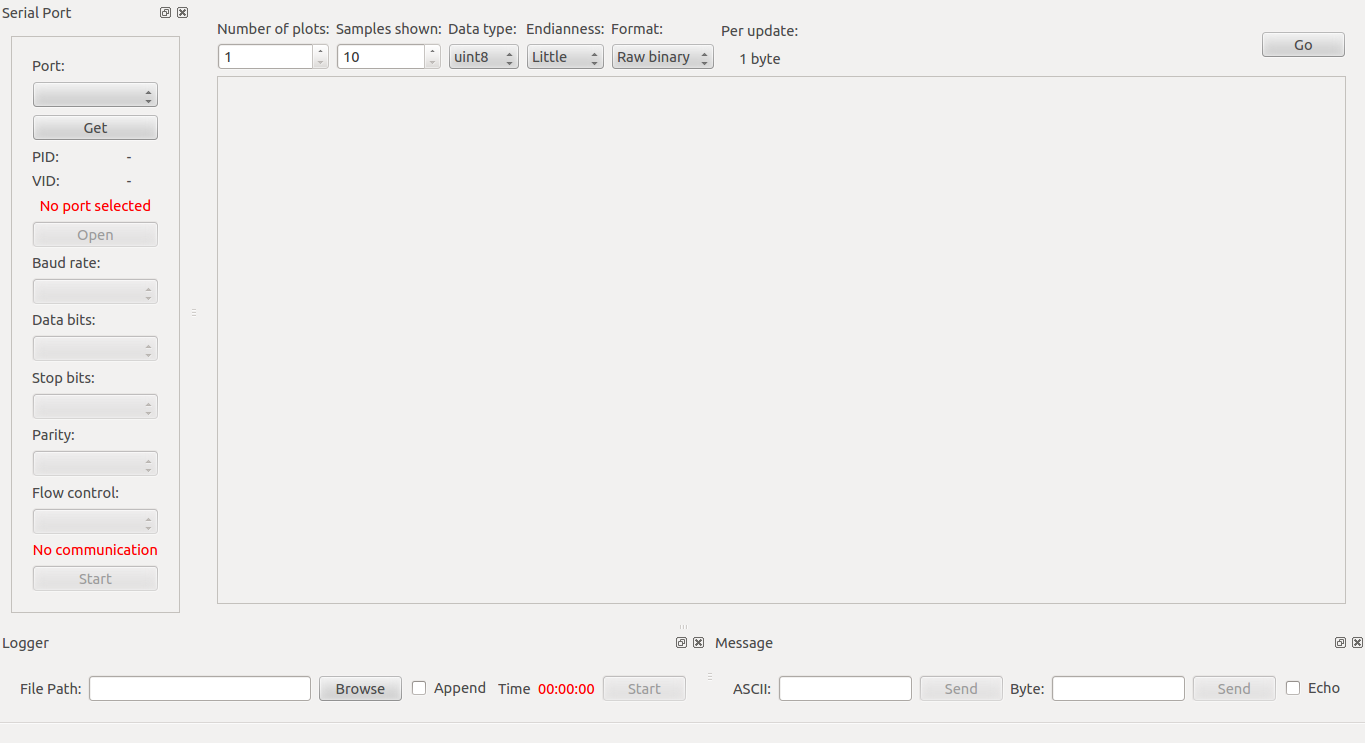
The DAS mode includes, on top of the data logger feature, a moving plot feature. To achieve these moving plots, qSerialTerm uses libqwt for plotting. This means, that libqwt is a new dependency for qSerialTerm.

The user can select between these two modes using the "From Device" menu. In the following image, you can see qSerialTerm  configured as a DAS.

qSerialTerm in "plot" mode.

The user can configure the number of plots and the data type, endianness and format of the incoming data.

On the following image, you can see the a fully configured qSerialTerm ready to receive two "variables".

qSerialTerm configured for two plots.

These "variables" must be grouped as packets, e.g. let's say we want to plot 3 variables, these variables are floats, and are encoded as little endian raw binary. Each packet of data will contain one data point for each variable, summing a total of 12 bytes (4 bytes per float) per packet.

Packet Variable 1 Variable 2 Variable 3
1 float1 float2 float3
2 float4 float5 float6
Two structured packets

qSerialTerm should receive these two packets in the following order: float1, then float2, and so on until float 6. Then, two data points will be added to each plot.

Demostration


I'll now show some screenshots of qSerialTerm in operation. For these demos, I shorted the TX and RX lines of my USB <-> Serial converter, this means that every byte I send from the PC was echoed back to the PC.

The data was sent using the qSerialTerm's "frame" feature. Using the continuous mode, I sent data, whose values varied with sliders, this data echoed back to the PC, and ended being added to the plots.

1 uint8 variable

2 int8 variables

I'll post a demo video later.

Repository


You can get qSerialTerm source code from this repository.

More information

qSerialTerm as a serial port terminal emulator
qSerialTerm for data logging
qSerialTerm for serial servomotor control
qSerialTerm for image visualization 

Saturday, August 4, 2012

qSerialTerm: Serial port servomotor control

qSerialTerm, a Qt based serial port terminal emulator, now supports a "frame" feature, intended for servomotor control applications.

This "frame" feature allows the user to send multiple data points (uint8, int8, etc) grouped in a frame. The user can send this frame by click a button or choose to periodically send these frames via a checkbox.

The value of these data points can be varied via a slider or, alternatively, via a spin box. The frame can be sent in two formats: Raw binary or hexadecimal string, where each byte is represented by two characters. e.g. 31 (one raw binary byte) or "1F" (hexadecimal string = 2 bytes).

The minimum and maximum values for the data points and the endianness of data points can also be specified by the user.

Additionally, the user can append one byte and/or prepend one byte to the frame.

A image is worth a thousand of words, the above description will be clearer with the following image.

qSerialTerm frame feature

In the following sections, I'll show you some usage of this frame feature.

Raw binary format


Raw binary format

For this example, the frame was composed of these bytes: 48, 49, 50, 51; and sent in raw binary format. These bytes are equivalent to the '0', '1', '2' and '3' characters shown in the terminal.

Hexadecimal string format and endianness


Hexadecimal string format

In this example, these 4 words (uint16): 15, 255, 4095 and 65535 were sent in hexadecimal string format.

Notice that these 4 words should take 8 bytes, however the hexadecimal string format takes 16 characters (bytes).

Also the frame is in little endian format, this means that the least significant byte occupies the the lowest memory address. e.g. the word 15 is represented as 0x000F in big endian format, and represented as 0x0F00 in little endian format.

Finally, in little endian format 15 -> 0x0F00, 255 -> 0xFF00, 4095 ->0xFF0F and 65535 -> 0xFFFF. All this results in the following string: "0F00FF00FF0FFFFF", which is shown in the terminal.

Servomotor control demo


I owe you this one for now. I've used this software to send signal controls to a robot. I'll post a video later.

Repository


qSerialTerm source code is available in this repository.

More information


qSerialTerm as a serial port emulator
qSerialTerm for data logging
qSerialTerm for data acquisition
qSerialTerm for image visualization  

Wednesday, August 1, 2012

qSerialTerm: Improved and now can be used as Data Logger

qSerialTerm, the Qt based serial port emulator, has been improved from its first version, and now has a data logging feature, all the improvements are listed below:

  • Added data logging feature (rewrite file or append to file).
  • Reading data from the serial port is now periodic.
  • Fixed lose of focus when data is received.
  • Rearranged docks.
  • Docks can be called back from the "View" menu.

You can see below the new looks of qSerialTerm.

qSerialTerm new looks

I'll now show you via images the new logging feature. Below you can see the log file selection dialog.

Selecting the log file.

Before start logging, you can select whether to overwrite or to append to an existing file, using the "append" checkbox. After you start logging, a timer will show for how long you have been logging.

Testing the logging feature.

On the following image, you can see the contents of the "log.txt"

Checking the log file.

Repository


Saturday, July 7, 2012

Windows: Communicating with a HC-06 bluetooth module

On this post, I'll cover the PC-side configuration needed to communicate with a HC-06 bluetooth module. For more information about the HC-06 module per se (pinout, recommended electrical connection, AT commands and more) check this post.

The process is straightforward in Windows.

Discovery


Double click the Bluetooth icon in your taskbar. Or alternatively, go to Control Panel > Hardware and Sound > Devices and Printers > Add a device.

On this new window, click on the "Add a device" button in the menu.

Discovery of bluetooth devices.

Windows will start searching for nearby bluetooth devices (your HC-06 module should be powered by now).

Pairing


From the list of discovered devices, select your HC-06 module. You should be able to see it's name (linvor is the default name) and it should be listed under the Other category.

On the new window, select the "Pair without using a code" option.

Pairing with the HC-06 module

Checking


You should see the "Installing device driver software" bubble by now. When the installation is done, we'll be able to check the properties of the HC-06 module. Right click on the device and select properties. The important information is under the "Services" tab of the properties window.

Checking the HC-06 module properties.

Communication


After pairing with the HC-06 module, it will be registered as a "COM" port, and you'll be able to communicate with it, using any serial port emulator (e.g. qSerialTerm)

On the first connection to the module, you'll be asked for the pin (the default pin is 1234).

Inserting the pin on the first connection.

Enjoy


That's all, go ahead and play with your bluetooth module.

Testing the bluetooth module.


Windows: Installing Qt Creator

Qt Creator is a great cross-platform IDE for open source development of Qt-based applications. The cross-platform Qt framework allows you to create amazing GUI applications for Windows, Linux, Mac, Symbian, etc.

In this post, I'll cover the installations steps of Qt Creator and the Qt libraries.

Get the MinGW compiler collection


First of all, we need a C compiler. The Qt libraries for Windows have been compiled using the MinGW 4.4 compiler collection. So we need to install the very same version, which is available here(ftp.qt.nokia).

After downloading the zip file, extract it under the "C:\" path (or any other place you want).

Unzipping the MinGW compiler collection in the C:/ drive.

Get the Qt libraries


Grab the latest Qt library (the MinGW version one) from here(qt.nokia.com), and execute the installer. When asked for the path to the MinGW folder, use the same path you used in the last step.

Qt-library installation: Selecting the MinGW installation path.

Get Qt creator


Get the latest version of Qt creator from here(qt.nokia.com). Follow the installer's instructions. When done, launch Qt creator and move to the next step.

Qt Creator: Start-up window.

Select a C compiler in Qt creator


Go to Menu > Tools > Options.

Click on the "Build and Run" section and go under the "Tool Chains" tab, then click on the "Add" button and select the MinGW option. Configure the C compiler as in the following example.

Selecting a toolchain.

Select a Qt library in Qt creator


Go to Menu > Tools > Options.

Click on the "Build and Run" section and go under the "Qt Versions" tab, then click on the "Add" button. Browse to the "qmake" binary as in the following example.

Selecting the Qt library.

Enjoy!


That's all. Now, take a look at the various tutorials available on the WWW, and start coding. Or take a look at my Qt-based serial port emulator (qSerialTerm) as an example.

Hello World example in Qt creator.